...
Xporter for Jira is now available on the Jira Service Desk Customer Portal, which allows you to export a template from it.
How to perform
1) Configure Global Settings
In the Global Settings of the Jira Administration Apps page, turn on the setting for Enable Xporter for Jira Service Desk, and then click Save.
2) Add template with Jira Service Desk scope
You must have, at least, one template with Jira Service Desk scope associated in order to get a document at the moment of the export.
3) Permissions
Permission schemes allow administrators to define which Projects, Issue Types, User Roles, and Groups will be available to use Xporter, as well as manage the templates allowed to be used on each of those available Issue Types.
| Info |
|---|
For more information, please check our documentation here. |
On the Permission Schemes on the Xporter for Jira administration section Apps page of the Jira Administration, click in Add to set up a new schema.
- Click on Roles and choose Service Desk Customers
- Click on Assign Groups and choose jira-servicedesk-users
4) Customer Portal
If you have access to the customer portal of a particular issue, you will be able to export the document.
Getting the value of SLA
You can extract the time of SLA data from the JSD.
Definition
Let's imagine that the SLA is the Time to Resolution custom field. The definition will be:
${Time to Resolution} |
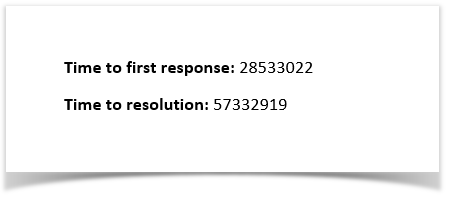
That´s it. There´s no special configuration to be made in order for this to work. The time is exported in milliseconds.
Example
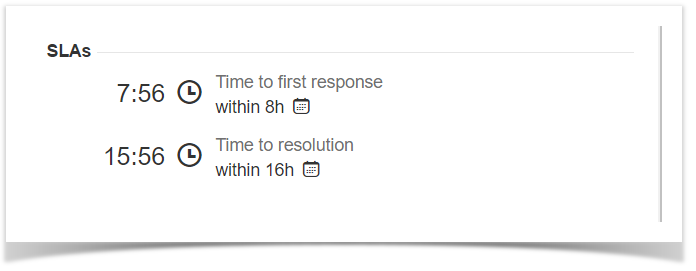
Below are the Time to first response and Time to resolution.
This translates to a Word document template as resolved by Xporter for Jira:
Furthermore, you are able to export more information related to the SLA. Each SLA has information on when it started and stopped, and whether it breached the SLA goal. The notation is:
${<SLA custom field>.<Field>} |
| SLA fields | Description |
|---|---|
elapsedTime | Returns the total time the SLA has been running |
startTime | Returns the date when the SLA started |
stopTime | Returns the date when the SLA stopped |
goalDuration | Returns the date with the SLA duration |
breached | Returns a boolean if the SLA is breached |
paused | Returns a boolean if the SLA is paused |
withinCalendarHours | Returns a boolean if the SLA is within calendar hours |
| Code Block | ||||
|---|---|---|---|---|
| ||||
Let's imagine that the SLA is the Time to Resolution custom field:

${Time to resolution}
${Time to resolution.elapsedTime}
${Time to resolution.startTime}
${Time to resolution.stopTime}
${Time to resolution.goalDuration}
${Time to resolution.paused}
${Time to resolution.withinCalendarHours} |
| Info |
|---|
The field ${Time to resolution} will be responsible to return the remaining time of the SLA custom field |
| Note |
|---|
To convert the value in milliseconds, use the new function ${durationformat:<SLA custom field>} to get the value formatted. |
Export Internal Comments
Xporter V5.3.0 and higher allows you to export the internal value of a comment.
This can also be used to filter the internal comments.
Definition
#{for comments} ${Comments[n].Internal} #{end} |
How to use to filter comments
To return only the Internal Comments:
#{if (%{${Comments[n].Internal}})} or #{if (%{'${Comments[n].Internal}'.equals('true')})}
To retrieve only the public comments:
#{if (%{!${Comments[n].Internal}})} or #{if (%{'${Comments[n].Internal}'.equals('false')})}
Example:
#{for comments} #{if (%{${Comments[n].Internal}})} Author: ${Comments[n].Author} Body: ${Comments[n].Body} #{end} #{end} |
Export Organizations
Definition
${Organizations} |
...